> ## Documentation Index
> Fetch the complete documentation index at: https://docs.gizatech.xyz/llms.txt
> Use this file to discover all available pages before exploring further.
# Use Giza with AI Agents
> Manage your Giza Agent by chatting with an AI assistant
Talk to an AI assistant to manage your Giza Agent using natural language. Deposit, withdraw, check your portfolio, switch strategies, and more -- just by asking.
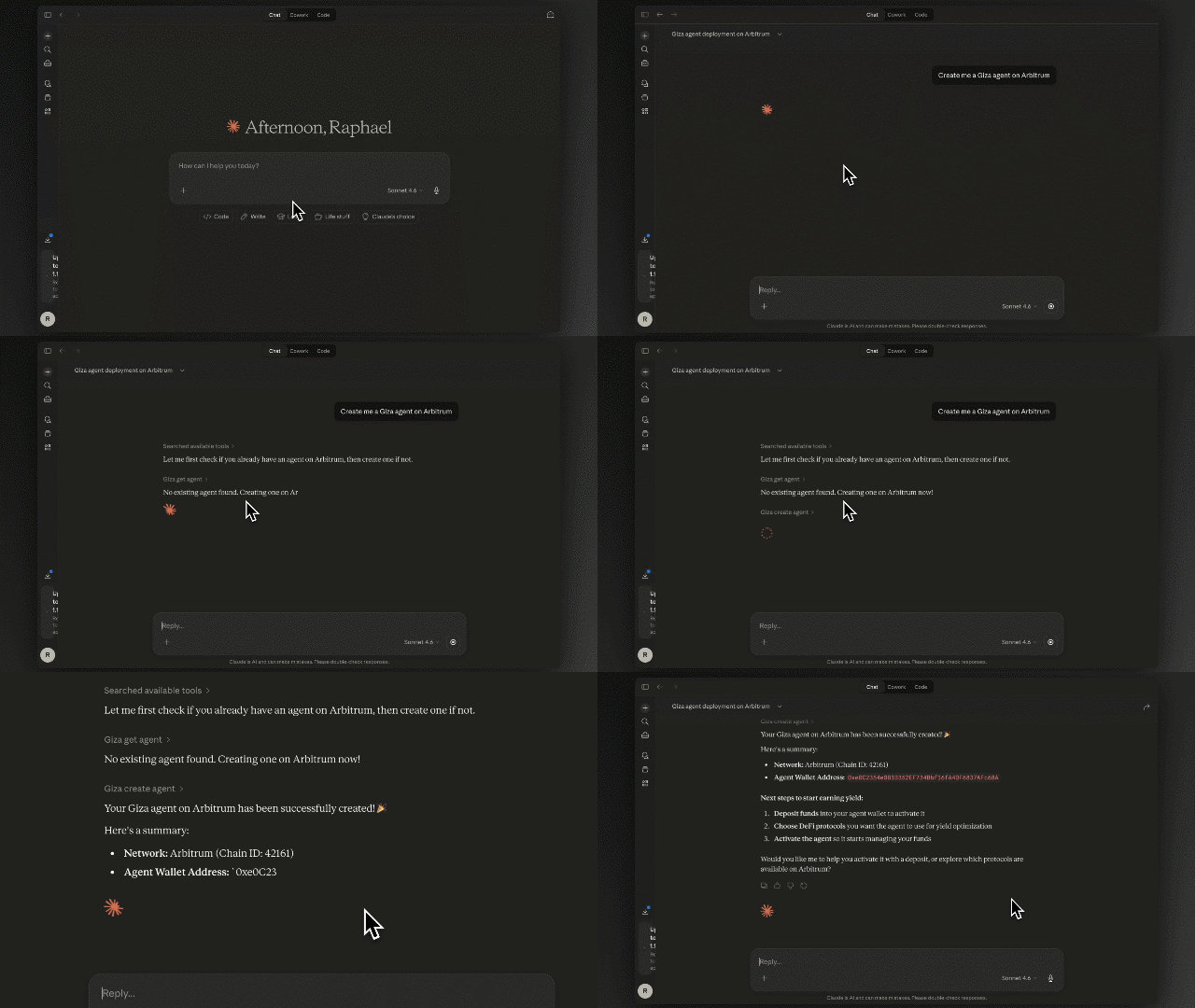 ## What You Can Do
* Check your portfolio and current yield
* Deposit and withdraw funds
* View your rewards and claim them
* Change your strategy and selected markets
* See your transaction history
* Get help setting up a new account
## Setup
Pick the AI client you want to use and follow the steps below.
Launch the Claude Desktop app on your computer.
Click the gear icon to open **Settings**, then click **Customize**.
Click **Connectors** in the sidebar, then click **Add marketplace**. Enter the following URL and click **Sync**:
```
https://github.com/gizatechxyz/giza-hub
```
Go to **Skills** in the sidebar. You'll see "Giza skills" available. Click **Install**.
Open a new chat and ask anything -- for example, "How's my portfolio?" or "Help me get started."
You can also type `/giza` in the chat to invoke the skill directly.
If you haven't already, install Claude Code from [claude.com/claude-code](https://claude.com/claude-code).
Run the following command:
```bash theme={null}
/plugin marketplace add gizatechxyz/giza-hub
```
```bash theme={null}
/plugin install giza-skills
```
Ask Giza questions directly in your Claude Code session.
```bash theme={null}
npm i -g openclaw
```
```bash theme={null}
npx clawhub@latest install giza
```
Open Openclaw and start asking Giza questions.
## First Time Login
On your first interaction, the AI will send you a login link. Open it in your browser to connect your wallet. After that, you're set -- future sessions will remember you.
## Example Prompts
Here are a few things you can ask:
* "Help me get started with Giza"
* "How's my portfolio doing?"
* "What's my current yield?"
* "Withdraw \$100"
* "What rewards have I earned?"
* "What protocols am I using?"
## What You Can Do
* Check your portfolio and current yield
* Deposit and withdraw funds
* View your rewards and claim them
* Change your strategy and selected markets
* See your transaction history
* Get help setting up a new account
## Setup
Pick the AI client you want to use and follow the steps below.
Launch the Claude Desktop app on your computer.
Click the gear icon to open **Settings**, then click **Customize**.
Click **Connectors** in the sidebar, then click **Add marketplace**. Enter the following URL and click **Sync**:
```
https://github.com/gizatechxyz/giza-hub
```
Go to **Skills** in the sidebar. You'll see "Giza skills" available. Click **Install**.
Open a new chat and ask anything -- for example, "How's my portfolio?" or "Help me get started."
You can also type `/giza` in the chat to invoke the skill directly.
If you haven't already, install Claude Code from [claude.com/claude-code](https://claude.com/claude-code).
Run the following command:
```bash theme={null}
/plugin marketplace add gizatechxyz/giza-hub
```
```bash theme={null}
/plugin install giza-skills
```
Ask Giza questions directly in your Claude Code session.
```bash theme={null}
npm i -g openclaw
```
```bash theme={null}
npx clawhub@latest install giza
```
Open Openclaw and start asking Giza questions.
## First Time Login
On your first interaction, the AI will send you a login link. Open it in your browser to connect your wallet. After that, you're set -- future sessions will remember you.
## Example Prompts
Here are a few things you can ask:
* "Help me get started with Giza"
* "How's my portfolio doing?"
* "What's my current yield?"
* "Withdraw \$100"
* "What rewards have I earned?"
* "What protocols am I using?"